
同窗口自愈:利用 $env:Path 实时刷新技术,解决了“装完 Git 但当前窗口不认识”的问题。你不需要关掉再开,也不需要重启。
全镜像替换:彻底抛弃了 winget 访问 GitHub 的逻辑。Node、Python、Git 全部改用阿里/华为/腾讯的镜像站,下载速度起码提升 50 倍。
防止假文件:CMake 换成了 ghp.ci 加速代理拉取,这样下回来的就是 30MB 的安装包,而不是 9KB 的 HTML 错误页。
路径即时生效:在安装完 Git 后立即刷新 $env:Path,解决了“明明装了 Git 却报命令找不到”的问题。
逻辑闭环:把你要求的 insteadOf 加速和 python 路径锁定放到了编译开始前的最后一秒,确保 npm install 绝对不挂。
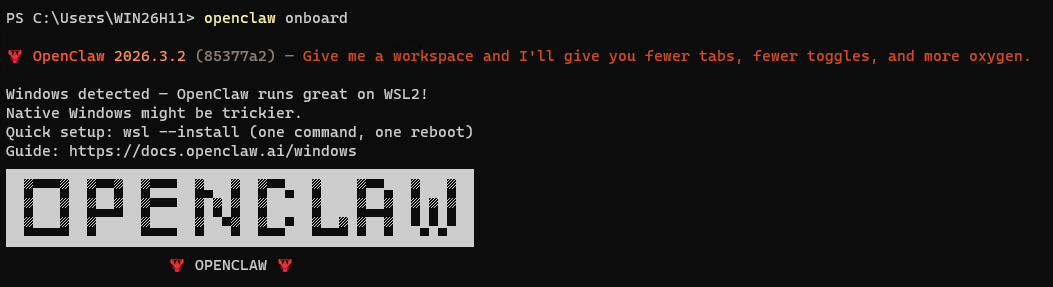
安装脚本运行结束后,首次设置或重新配置 OpenClaw,直接输入运行进入初始化配置界面:
openclaw onboard打开 OpenClaw 的控制界面 (Control UI)
openclaw dashboard修改文件,重启本地OpenClaw服务
openclaw gateway restart一键安装脚本依次完成:
Node/Python/Git 镜像强装 -> CMake 路径对齐 -> VS 编译链补齐 -> OpenClaw 最终安装。
# ==========================================================
# OpenClaw 2026 全系统初始化 - 物理镜像增强版
# 目标:解决 GitHub 连不上、权限被禁、路径不识别、假文件下载
# ==========================================================

# 1. 权限与策略解锁 (解决 npm.ps1 无法运行的问题)
Set-ExecutionPolicy -ExecutionPolicy RemoteSigned -Scope CurrentUser -Force
Write-Host ">>> 系统策略已解锁,开始执行全环境物理植入 <<<" -ForegroundColor Cyan

# 2. 核心组件强装 (全部采用国内镜像物理直链)
Write-Host "[1/4] 正在从高速镜像站拉取 Node, Python, Git..." -ForegroundColor Yellow

$tools = @{
    "Node.js" = "https://mirrors.huaweicloud.com/nodejs/v24.14.0/node-v24.14.0-x64.msi";
    "Python"  = "https://npmmirror.com/mirrors/python/3.11.9/python-3.11.9-amd64.exe";
    "Git"     = "https://npmmirror.com/mirrors/git-for-windows/v2.53.0.windows.1/Git-2.53.0-64-bit.exe"
}

foreach ($name in $tools.Keys) {
    $ext = if ($name -eq "Node.js") { "msi" } else { "exe" }
    $tempPath = "$env:TEMP\$name.$ext"
    Write-Host "正在高速下载 $name..." -ForegroundColor Gray
    curl.exe -L -o $tempPath $tools[$name]

    # 自动执行静默安装
    if ($name -eq "Node.js") { Start-Process msiexec.exe -ArgumentList "/i `"$tempPath`" /qn /norestart" -Wait }
    if ($name -eq "Python")  { Start-Process $tempPath -ArgumentList "/quiet InstallAllUsers=1 PrependPath=1" -Wait }
    if ($name -eq "Git")     { Start-Process $tempPath -ArgumentList "/VERYSILENT /NORESTART /NOCANCEL /SP-" -Wait }
    Remove-Item $tempPath
}

# 3. 部署 CMake 与 VS 编译链 (本地编译 node-llama-cpp 必需)
Write-Host "[2/4] 正在配置 C++ 编译环境 (预计需 3-5 分钟)..." -ForegroundColor Yellow

# CMake 华为云镜像 (30MB+ 完整包)
$cmakeMsi = "$env:TEMP\cmake_setup.msi"
curl.exe -L -o $cmakeMsi "https://mirrors.huaweicloud.com/cmake/v3.31.5/cmake-3.31.5-windows-x86_64.msi"
Start-Process msiexec.exe -ArgumentList "/i `"$cmakeMsi`" /qn /norestart ADDLOCAL=CMake_Path" -Wait

# VS 2022 编译核心 (静默安装)
$vsBoot = "$env:TEMP\vs_setup.exe"
curl.exe -L -o $vsBoot "https://aka.ms/vs/17/release/vs_buildtools.exe"
$vsParams = "--add Microsoft.VisualStudio.Workload.VCTools --add Microsoft.VisualStudio.Component.VC.CMake.Project --includeRecommended --passive --norestart --wait"
Start-Process $vsBoot -ArgumentList $vsParams -Wait

# 4. 路径刷新与加速重写 (整合谢工核心逻辑)
Write-Host "[3/4] 正在同步系统环境变量并配置加速..." -ForegroundColor Yellow
$env:Path = [System.Environment]::GetEnvironmentVariable("Path","Machine") + ";" + [System.Environment]::GetEnvironmentVariable("Path","User")

# Git 加速配置 (换用目前最稳的加速站)
if (Get-Command git -ErrorAction SilentlyContinue) {
    git config --global url."https://ghproxy.net/https://github.com/".insteadOf "https://github.com/"
    git config --global url."https://ghproxy.net/https://github.com/".insteadOf "ssh://git@github.com/"
}

# 锁定 Python 环境变量
$realPython = (Get-Command python.exe -ErrorAction SilentlyContinue).Source
if ($realPython) { $env:PYTHON = $realPython }

# 5. 发起总攻:安装 OpenClaw
Write-Host "[4/4] 环境已全线打通,正在执行 OpenClaw 编译安装..." -ForegroundColor Green
& cmd /c "npm config set registry https://registry.npmmirror.com"
& cmd /c "npm install -g openclaw@latest --foreground-scripts"

Write-Host "================================================" -ForegroundColor Cyan
Write-Host ">>> 恭喜!全环境自动化部署完成 <<<" -ForegroundColor Green
Write-Host ">>> 启动指令:openclaw onboard <<<" -ForegroundColor White
Write-Host "================================================" -ForegroundColor Cyan
执行 onboard 时你会做的事情:
- 选择模型:你可以选择连接在线 API(如 DeepSeek、OpenAI)或者使用本地模型。
- 定义角色:你可以告诉它你是建筑工程专家,还是 Python 开发者。
- 关联目录:建议把你的 目录 (
kaixinit) 或者 文档目录 关联进去。
输出结果,安装过程中的输出如下:
PS C:\Users\WIN26H11> # ==========================================================
PS C:\Users\WIN26H11> # OpenClaw 2026 全系统初始化 - 物理镜像增强版
PS C:\Users\WIN26H11> # 目标:解决 GitHub 连不上、权限被禁、路径不识别、假文件下载
PS C:\Users\WIN26H11> # ==========================================================
PS C:\Users\WIN26H11>
PS C:\Users\WIN26H11> # 1. 权限与策略解锁 (解决 npm.ps1 无法运行的问题)
PS C:\Users\WIN26H11> Set-ExecutionPolicy -ExecutionPolicy RemoteSigned -Scope CurrentUser -Force
PS C:\Users\WIN26H11> Write-Host ">>> 系统策略已解锁,开始执行全环境物理植入 <<<" -ForegroundColor Cyan
>>> 系统策略已解锁,开始执行全环境物理植入 <<<
PS C:\Users\WIN26H11>
PS C:\Users\WIN26H11> # 2. 核心组件强装 (全部采用国内镜像物理直链)
PS C:\Users\WIN26H11> Write-Host "[1/4] 正在从高速镜像站拉取 Node, Python, Git..." -ForegroundColor Yellow
[1/4] 正在从高速镜像站拉取 Node, Python, Git...
PS C:\Users\WIN26H11>
PS C:\Users\WIN26H11> $tools = @{
>>     "Node.js" = "https://mirrors.huaweicloud.com/nodejs/v24.14.0/node-v24.14.0-x64.msi";
>>     "Python"  = "https://npmmirror.com/mirrors/python/3.11.9/python-3.11.9-amd64.exe";
>>     "Git"     = "https://npmmirror.com/mirrors/git-for-windows/v2.53.0.windows.1/Git-2.53.0-64-bit.exe"
>> }
PS C:\Users\WIN26H11>
PS C:\Users\WIN26H11> foreach ($name in $tools.Keys) {
>>     $ext = if ($name -eq "Node.js") { "msi" } else { "exe" }
>>     $tempPath = "$env:TEMP\$name.$ext"
>>     Write-Host "正在高速下载 $name..." -ForegroundColor Gray
>>     curl.exe -L -o $tempPath $tools[$name]
>>
>>     # 自动执行静默安装
>>     if ($name -eq "Node.js") { Start-Process msiexec.exe -ArgumentList "/i `"$tempPath`" /qn /norestart" -Wait }
>>     if ($name -eq "Python")  { Start-Process $tempPath -ArgumentList "/quiet InstallAllUsers=1 PrependPath=1" -Wait }
>>     if ($name -eq "Git")     { Start-Process $tempPath -ArgumentList "/VERYSILENT /NORESTART /NOCANCEL /SP-" -Wait }
>>     Remove-Item $tempPath
>> }
正在高速下载 Git...
  % Total    % Received % Xferd  Average Speed  Time    Time    Time   Current
                                 Dload  Upload  Total   Spent   Left   Speed
100    154 100    154   0      0    175      0                              0
100 61.58M 100 61.58M   0      0 10.49M      0   00:05   00:05         12.16M
正在高速下载 Node.js...
  % Total    % Received % Xferd  Average Speed  Time    Time    Time   Current
                                 Dload  Upload  Total   Spent   Left   Speed
100 30.78M 100 30.78M   0      0  9.09M      0   00:03   00:03          9.74M
正在高速下载 Python...
  % Total    % Received % Xferd  Average Speed  Time    Time    Time   Current
                                 Dload  Upload  Total   Spent   Left   Speed
100    154 100    154   0      0    823      0                              0
100 25.00M 100 25.00M   0      0  9.53M      0   00:02   00:02          9.72M
PS C:\Users\WIN26H11>
PS C:\Users\WIN26H11> # 3. 部署 CMake 与 VS 编译链 (本地编译 node-llama-cpp 必需)
PS C:\Users\WIN26H11> Write-Host "[2/4] 正在配置 C++ 编译环境 (预计需 3-5 分钟)..." -ForegroundColor Yellow
[2/4] 正在配置 C++ 编译环境 (预计需 3-5 分钟)...
PS C:\Users\WIN26H11>
PS C:\Users\WIN26H11> # CMake 华为云镜像 (30MB+ 完整包)
PS C:\Users\WIN26H11> $cmakeMsi = "$env:TEMP\cmake_setup.msi"
PS C:\Users\WIN26H11> curl.exe -L -o $cmakeMsi "https://mirrors.huaweicloud.com/cmake/v3.31.5/cmake-3.31.5-windows-x86_64.msi"
  % Total    % Received % Xferd  Average Speed  Time    Time    Time   Current
                                 Dload  Upload  Total   Spent   Left   Speed
100   9096   0   9096   0      0  41314      0                              0
PS C:\Users\WIN26H11> Start-Process msiexec.exe -ArgumentList "/i `"$cmakeMsi`" /qn /norestart ADDLOCAL=CMake_Path" -Wait
PS C:\Users\WIN26H11>
PS C:\Users\WIN26H11> # VS 2022 编译核心 (静默安装)
PS C:\Users\WIN26H11> $vsBoot = "$env:TEMP\vs_setup.exe"
PS C:\Users\WIN26H11> curl.exe -L -o $vsBoot "https://aka.ms/vs/17/release/vs_buildtools.exe"
  % Total    % Received % Xferd  Average Speed  Time    Time    Time   Current
                                 Dload  Upload  Total   Spent   Left   Speed
  0      0   0      0   0      0      0      0           00:01              0
100  4.25M 100  4.25M   0      0  2.05M      0   00:02   00:02              0
PS C:\Users\WIN26H11> $vsParams = "--add Microsoft.VisualStudio.Workload.VCTools --add Microsoft.VisualStudio.Component.VC.CMake.Project --includeRecommended --passive --norestart --wait"
PS C:\Users\WIN26H11> Start-Process $vsBoot -ArgumentList $vsParams -Wait
PS C:\Users\WIN26H11>
PS C:\Users\WIN26H11> # 4. 路径刷新与加速重写 (整合谢工核心逻辑)
PS C:\Users\WIN26H11> Write-Host "[3/4] 正在同步系统环境变量并配置加速..." -ForegroundColor Yellow
[3/4] 正在同步系统环境变量并配置加速...
PS C:\Users\WIN26H11> $env:Path = [System.Environment]::GetEnvironmentVariable("Path","Machine") + ";" + [System.Environment]::GetEnvironmentVariable("Path","User")
PS C:\Users\WIN26H11>
PS C:\Users\WIN26H11> # Git 加速配置 (换用目前最稳的加速站)
PS C:\Users\WIN26H11> if (Get-Command git -ErrorAction SilentlyContinue) {
>>     git config --global url."https://ghproxy.net/https://github.com/".insteadOf "https://github.com/"
>>     git config --global url."https://ghproxy.net/https://github.com/".insteadOf "ssh://git@github.com/"
>> }
PS C:\Users\WIN26H11>
PS C:\Users\WIN26H11> # 锁定 Python 环境变量
PS C:\Users\WIN26H11> $realPython = (Get-Command python.exe -ErrorAction SilentlyContinue).Source
PS C:\Users\WIN26H11> if ($realPython) { $env:PYTHON = $realPython }
PS C:\Users\WIN26H11>
PS C:\Users\WIN26H11> # 5. 发起总攻:安装 OpenClaw
PS C:\Users\WIN26H11> Write-Host "[4/4] 环境已全线打通,正在执行 OpenClaw 编译安装..." -ForegroundColor Green
[4/4] 环境已全线打通,正在执行 OpenClaw 编译安装...
PS C:\Users\WIN26H11> & cmd /c "npm config set registry https://registry.npmmirror.com"
PS C:\Users\WIN26H11> & cmd /c "npm install -g openclaw@latest --foreground-scripts"
npm warn deprecated node-domexception@1.0.0: Use your platform's native DOMException instead

> @whiskeysockets/baileys@7.0.0-rc.9 preinstall
> node ./engine-requirements.js


> koffi@2.15.2 install
> node src/cnoke/cnoke.js -P . -D src/koffi --prebuild


> sharp@0.34.5 install
> node install/check.js || npm run build


> protobufjs@7.5.4 postinstall
> node scripts/postinstall


> protobufjs@6.8.8 postinstall
> node scripts/postinstall


added 539 packages in 27s

88 packages are looking for funding
  run `npm fund` for details
PS C:\Users\WIN26H11>
PS C:\Users\WIN26H11> Write-Host "================================================" -ForegroundColor Cyan
================================================
PS C:\Users\WIN26H11> Write-Host ">>> 恭喜!全环境自动化部署完成 <<<" -ForegroundColor Green
>>> 恭喜!全环境自动化部署完成 <<<
PS C:\Users\WIN26H11> Write-Host ">>> 启动指令:openclaw onboard <<<" -ForegroundColor White
>>> 启动指令:openclaw onboard <<<
PS C:\Users\WIN26H11> Write-Host "================================================" -ForegroundColor Cyan
================================================
原创文章,作者:开心电脑网,如若转载,请注明出处。

